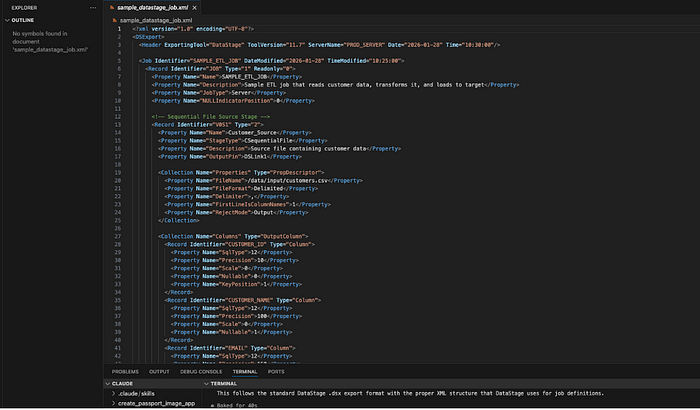
Turning Databricks into an AI pair‑programmer with Claude‑powered coding agents.
This guide walks through a practical, end‑to‑end setup: installing Claude Code, wiring it to Anthropic models served from Databricks, and configuring authentication so everything “just works” from your terminal and editor. You’ll generate model‑scoped API keys, plug them into Claude’s settings, bypass the default login flow for a smoother developer experience, and finish by testing the workflow directly from the CLI and VS Code.Here are the steps
Install Claude Code
Generate API Keys Anthropic Model
Login into your databricks workspace.Click on Serving under AI/ML section( Bottom left corner)

Serving
Click on Integrate coding agents(Get Started)

Serving endpoints
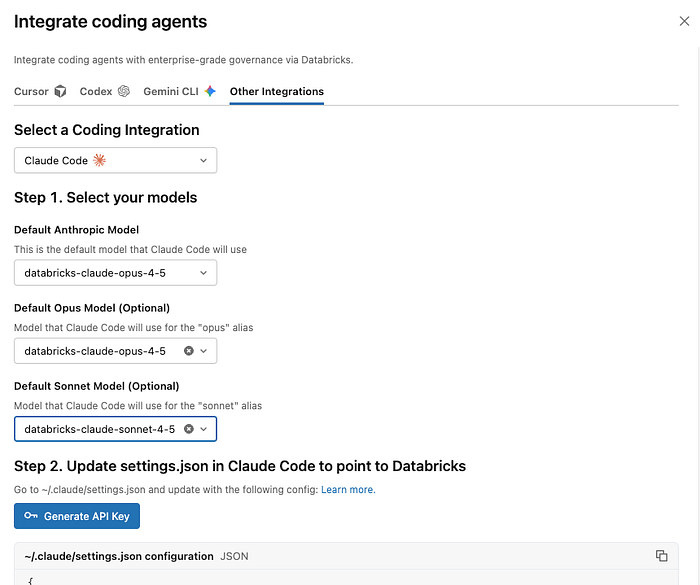
Select Other integrations
Select a coding integration(Claude Code)
Select Default Anthropic Model and other options
Generate API Keys
Press enter or click to view image in full size
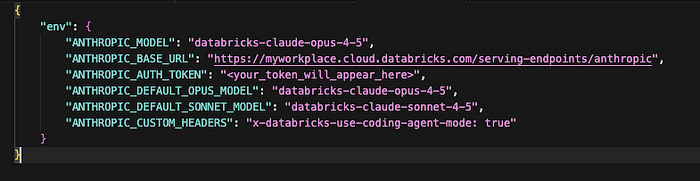
Update keys for claude settings
Go to ~/.claude/settings.json
Update / Replace the keys generated from previous step
Press enter or click to view image in full size
Override the login method
Update/Create ~/.claude/settings.json with following value
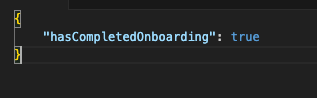
This prevents Claude from prompting you to select a login method
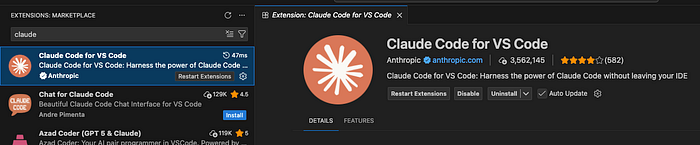
Install Claude Code for VS Code Plugin
Press enter or click to view image in full size
Test Drive claude
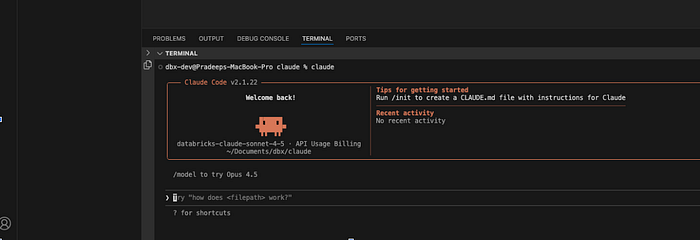
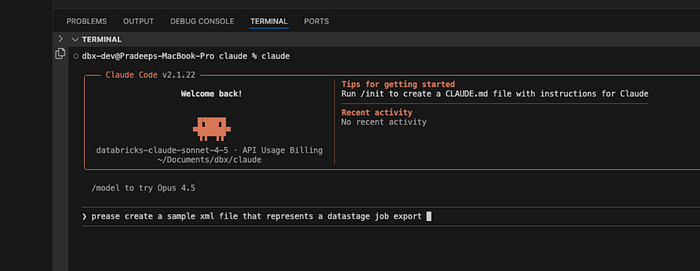
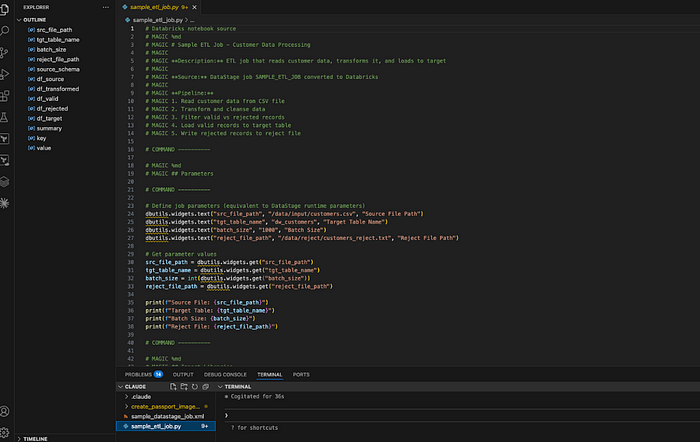
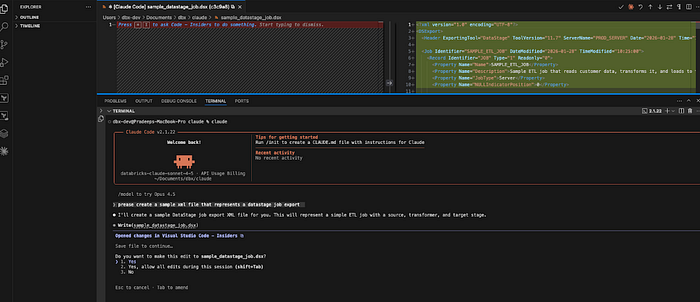
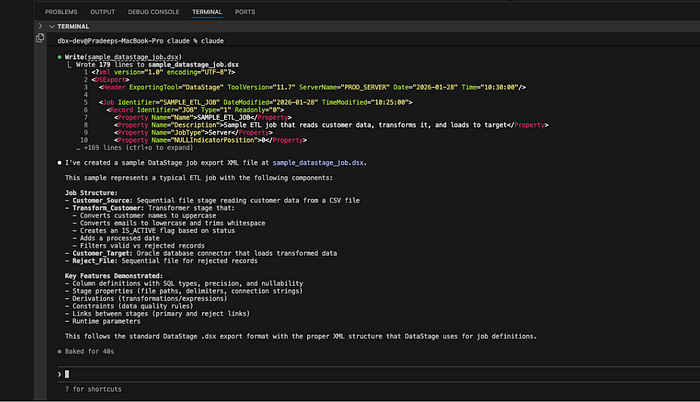
We will ask claude code to create a sample datastage.xml job that would mimic the export of a datastage job . Then we will ask it to convert this job to databricks
Type claude . Press enter .
Press enter or click to view image in full size
Press enter or click to view image in full size
Press enter or click to view image in full size
Press enter or click to view image in full size
Press enter or click to view image in full size
Press enter or click to view image in full size